
The below will guide you through the installation of the EU Login mobile application on your device, how to use it once installed and provide additional information in case you are facing any issue.
Important
Click here to read the mandatory requirements and make sure you are ready to start.
Have two IT devices at your disposal
- Your mobile device (smartphone, tablet, etc.), for the installation and long-term use of the EU Login mobile app.
- An internet-connected computer device, during the installation of the EU Login mobile app.
Ensure you can access the mobile applications store from your mobile device (Google Play for Android or AppStore for Apple).
For the EU Login mobile app:
- Download and only use its latest version.
- During the installation of the EU Login mobile app, allow EU Login mobile app notifications and access to the camera on your mobile device.
- If you have uninstalled the EU Login mobile app on your mobile device and reinstalled it and you are now facing issues to use it:
- Go to your EU Login account and delete all mobile devices already linked to your EU Login account.
- Uninstall the EU Login mobile app from your mobile device.
Regarding your mobile device:
- Protect it with a Screen Lock (PIN, biometrics...).
- If you use an Android mobile device, verify and adapt the time to take action from the Settings and Accessibility menu to make sure you have enough time to click on the notification that will be sent to your mobile device during the below procedure.
For detailed instructions on how to install and use the EU Login Mobile App, please refer to the step-by-step guide below.
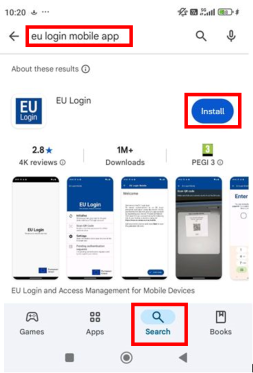
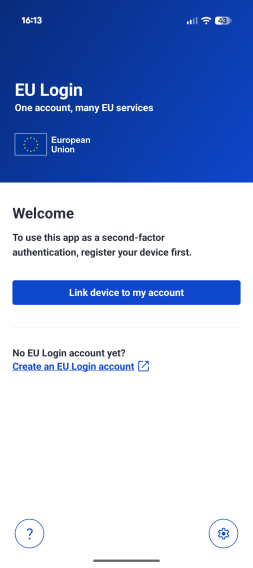
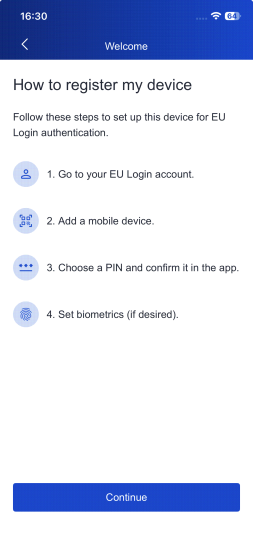
4. On your computer – access EU Login
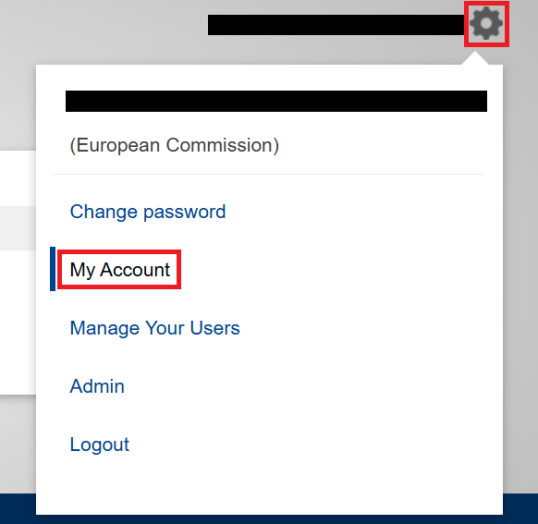
- Login to https://ecas.ec.europa.eu/cas.
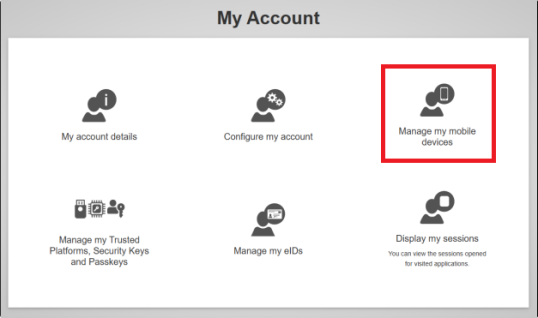
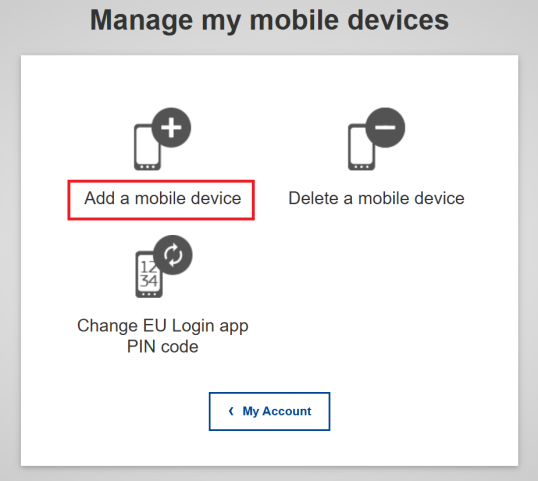
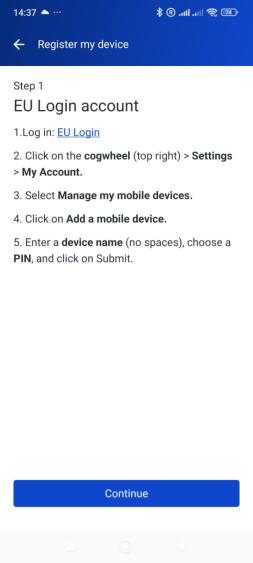
- Click the cogwheel icon (⚙️)→ My Account.
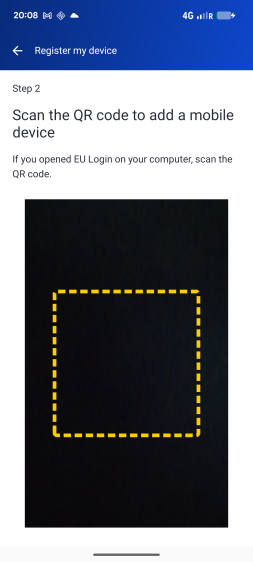
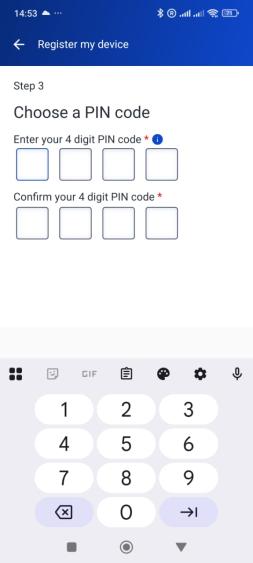
10. Create Your PIN Code
On your phone:
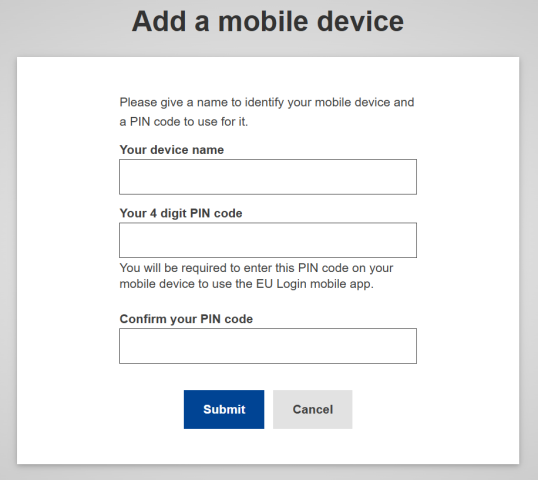
- Enter the 4-digit PIN code that you defined in step 7 for the EU Login Mobile app.
- Confirm the PIN.
This PIN will be used to approve login requests.
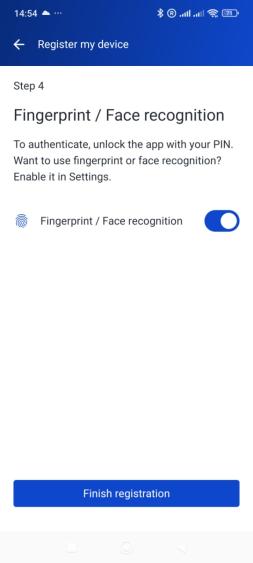
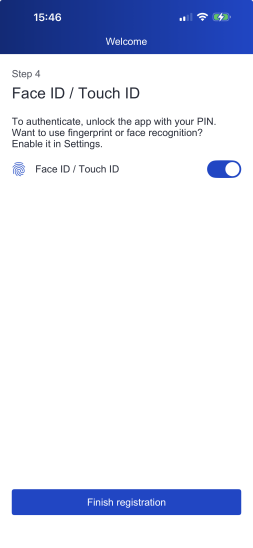
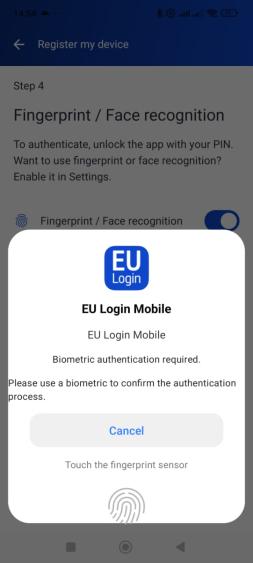
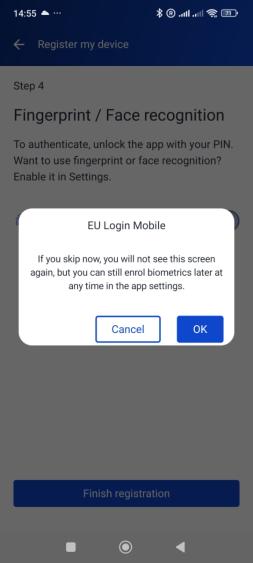
Important notes
- You can now link multiple accounts in the EU Login Mobile App. For further information, please follow the link: Multiple account support.
- If you change or reset your device, you’ll need to register it again.
Any issues?
If you have uninstalled the EU Login mobile app on your mobile device and reinstalled it and you are now facing issues to use it:
- Go to your EU Login account and delete all mobile devices already linked to your EU Login account.
- Make sure to clear all data and cache from the EU Login mobile app before trying to enroll it again.
- Uninstall the EU Login mobile app from your mobile device.
If the issue persists:
- Make sure your are not using a Virtual Private Network (VPN).
- If possible, disable your firewall for the time of the enrolment as the use of a firewall may cause issues.
- Consult the FAQ I have an error code when I try to log in using the EU Login mobile app, what should I do?