
How to sign in
1. Start Login in Your Browser: Login.
- Enter your email address.
- Select EU Login Mobile App QR Code as the verification method.
- Click Sign in.
A QR code will appear in your browser.
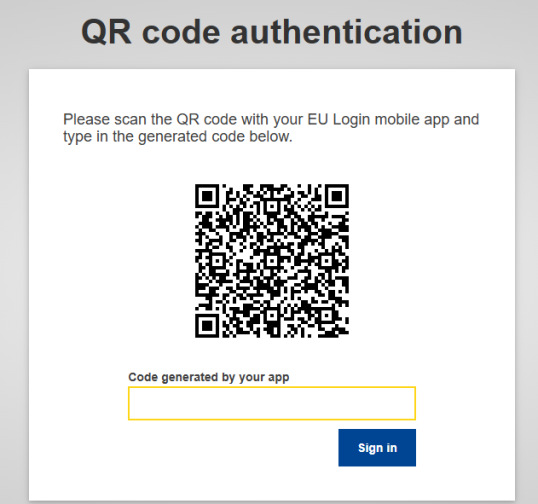
2. Scan the QR Code in the Mobile App
On your phone:
- Open the EU Login Mobile app.
Tap Scan QR Code
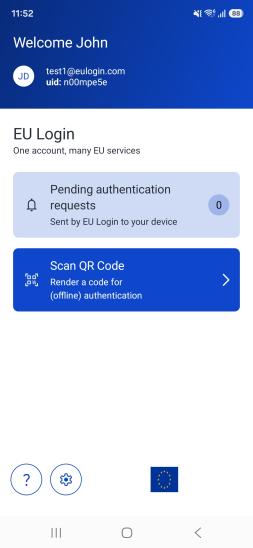
- Scan the QR code displayed in the browser.
The app generates a one-time password.
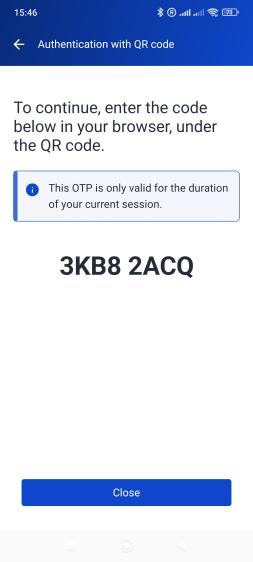
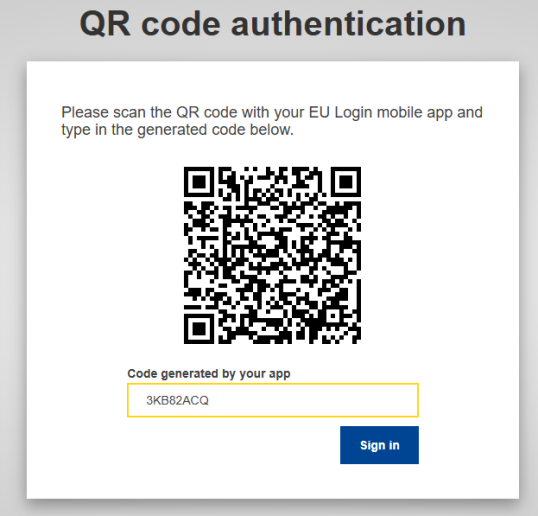
3. Enter the Code in the Browser
- Type the generated code into the field “Code generated by your app”.
- Click Sign in.
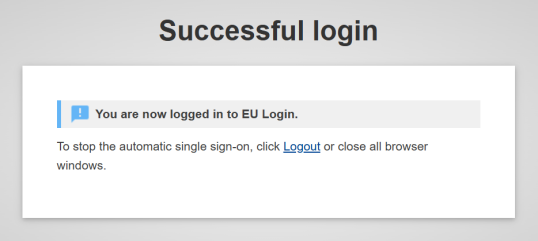
4. Successful Login
Your browser will confirm:
“You are now logged in to EU Login.”
You have successfully authenticated offline.
Using the QR code without internet on your mobile device
The “EU Login Mobile App QR code” option works even if your mobile device has no internet connectivity. The only requirement is that the EU Login mobile app has already been installed and initialised on your device while it was online.
Other alternatives such as TPM and security keys do not require internet connectivity. Please refer to the corresponding article for more information: How can I add a Security Key or a Trusted Platform?
For more information about configuring and using the EU Login mobile app, please see the dedicated article: How can I add a mobile device to my EU Login account?