
This page explains how to authenticate when using multiple accounts in the EU Login mobile application. The app supports three authentication methods:
- PIN Code authentication
- QR Code authentication
- On Mobile authentication (when authenticating directly from the mobile device)
1. Authenticate Using PIN Code
When using PIN authentication with multiple accounts:
- You will receive a notification inside the app indicating that an authentication request is pending
- This request may be for a different account than the one currently active on your screen
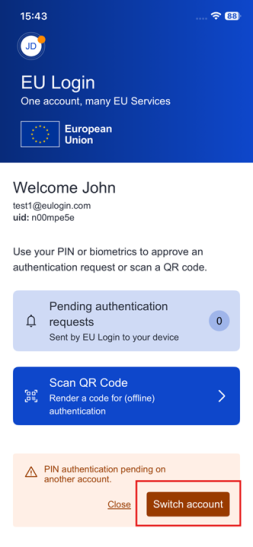
- The app will clearly notify you and allow you to switch accounts if needed
Below is an example of how such a notification appears:
You can:
- Tap “Switch account” to authenticate with the correct account
- Or proceed, if already on the correct account
For the full PIN authentication process, follow: Sign in with the EU Login Mobile App PIN code
2. Authenticate Using QR Code
If you have multiple accounts linked:
1. Open the EU Login app
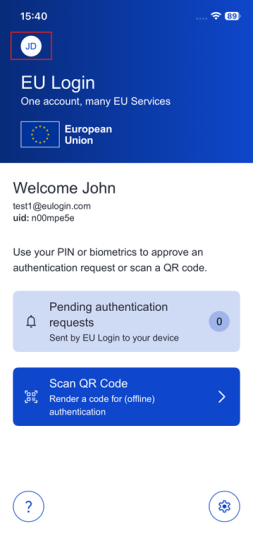
2. Tap the monogram icon (top-left corner)
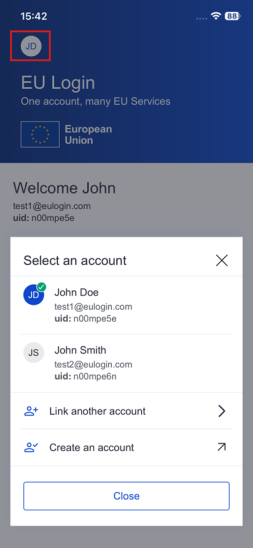
3. Select the account you wish to authenticate with
 |
 |
Before scanning a QR code, make sure you are switched to the correct account (see above) or proceed if already on the correct account.
Once the correct account is selected, follow the standard QR authentication process described here: Sign in with the EU Login Mobile App QR code.
3. Authenticate Using On Mobile Authentication
The “On Mobile” verification method is only available when browsing on a mobile device and should be used only if the EU Login Mobile App has been previously installed and initialized on that device.
The app will automatically select the account corresponding to the email address you are trying to log in to.
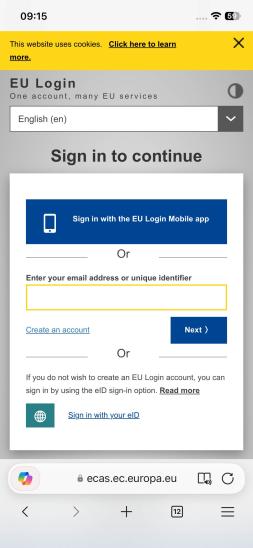
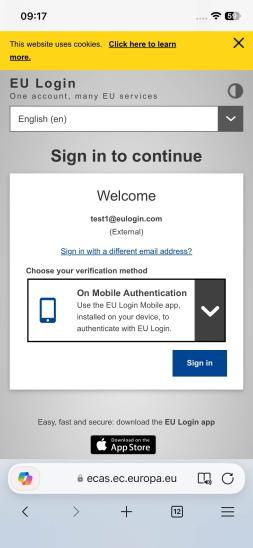
From the EU Login authentication page, you may either directly sign in using the On Mobile authentication or use it as a second factor.
 |
 |
Use it as a second factor
1. Select “On Mobile Authentication” as the verification method and tap “Sign in”
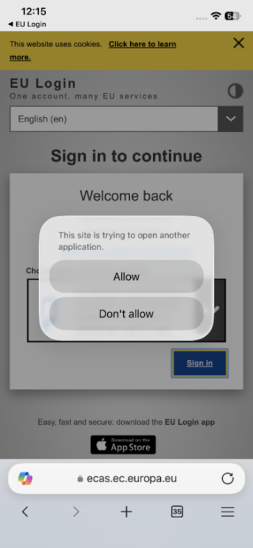
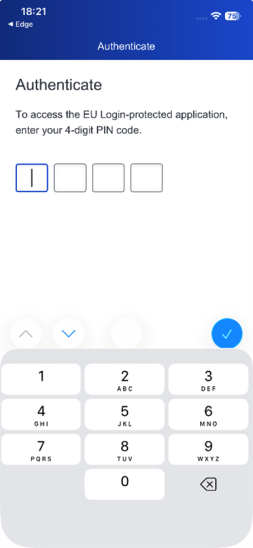
2. The EU Login Mobile App opens automatically and prompts you to enter your PIN code
 |
 |
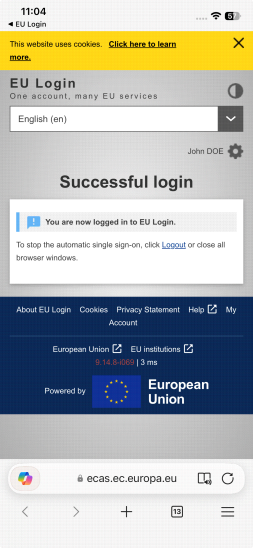
3. You are now successfully authenticated and redirected to the requested web page
Directly Sign in
1. Tap the “Sign in with the EU Login Mobile app” button
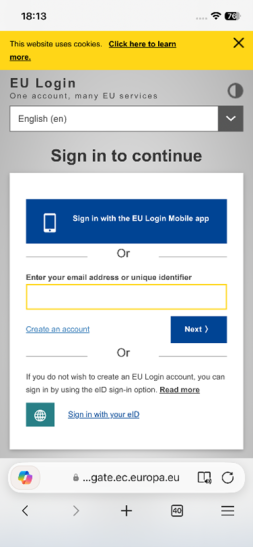
2. The app automatically opens and prompts you to select the account you need to log in with
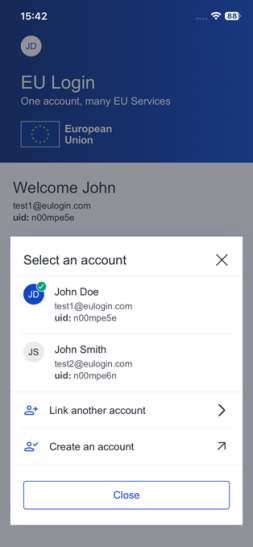
3. After you choose the desired account, you will be prompted to enter your PIN code
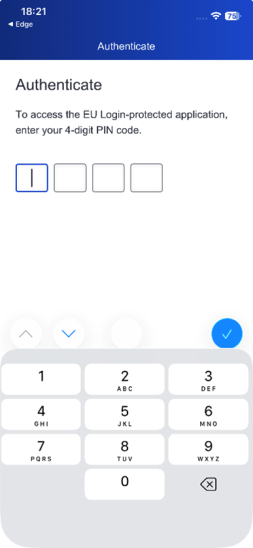
4. You are now successfully authenticated and redirected to the requested web page
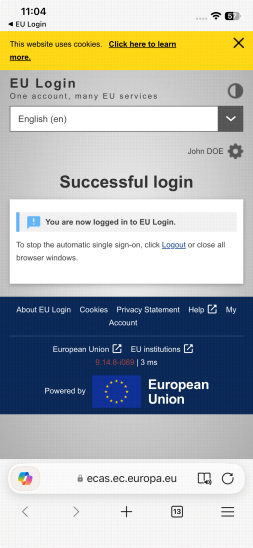
You can also follow the standard On Mobile authentication process: Sign in with an EU Login account using On Mobile authentication