European Union flag
EU Login Portal

Unlink an Account from the EU Login App

This guide explains how to remove (unlink) an account from the EU Login mobile application. 

Valid for

Important Before You Start 

If you have multiple accounts linked to your app, make sure you are using the correct account before proceeding with the unlinking process. 

Switch to the Correct Account (if you only have one account proceed with Step 1)

You can change the active account in one of the following ways:

  • Tap the monogram icon (top-left corner) and select the desired account 
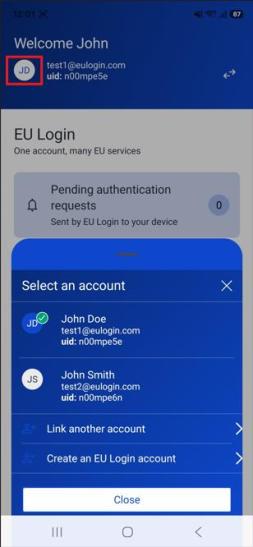
 

Monogram1


  • Or go to Settings and use the arrow button to switch accounts
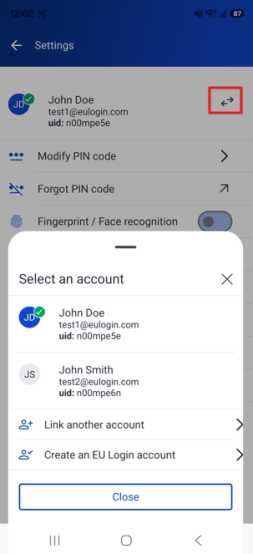
 

Arrow button


Steps to Unlink an Account 

Follow these steps to remove the selected account from your device: 

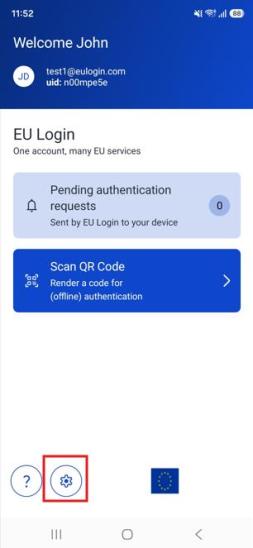
Step 1: Open Settings 

  • Launch the EU Login app
  • Tap the Settings icon 


Settings icon


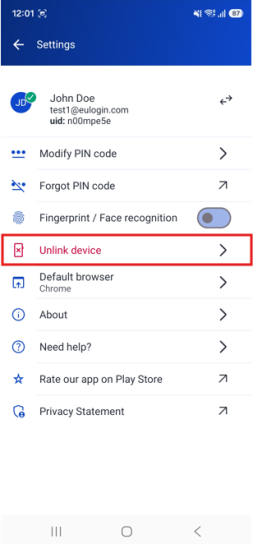
Step 2: Unlink the Device 

  • Tap “Unlink device”
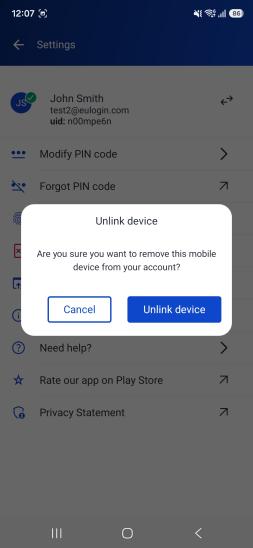
  • Confirm your choice in the pop-up window  


Unlink device 1
Confirmation

Result 

  • The selected account will be removed from the app
  • If multiple accounts were linked, only the currently active account will be unlinked
  • Other accounts will remain available in the application

Key Notes 

  • Always verify the active account before unlinking
  • The unlinking action only affects the selected account
  • You can re-add the account later by following the account linking process