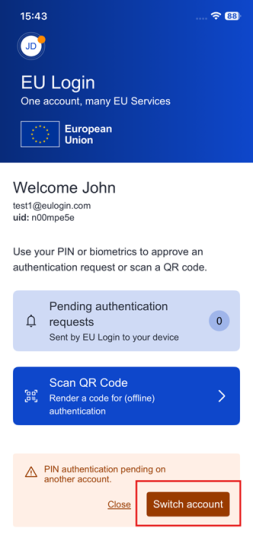
Before proceeding, ensure that at least one account is already set up on your device.
If you have not yet registered an account, follow the official installation and setup guide: EU Login Mobile app installation
1. Adding an Additional Account
Follow these steps to link a new account to your EU Login app:
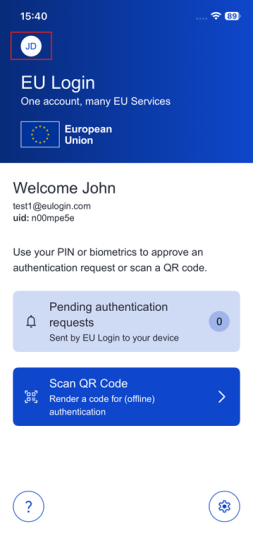
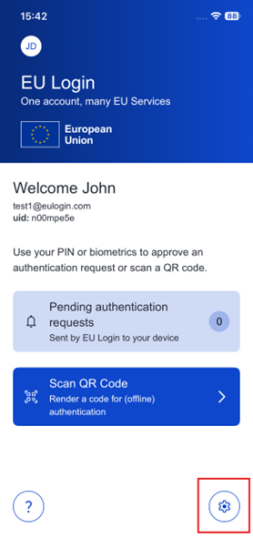
Step 1: Open the Account Menu
- Launch the EU Login mobile application.
- Tap the monogram icon located in the top-left corner of the screen.
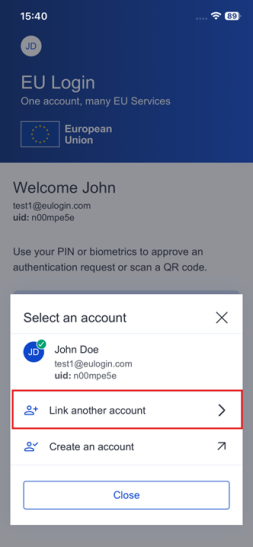
Step 3: Complete Registration
- Follow the standard registration process as described in the official guide: EU Login Mobile app installation
- Once completed, the new account will be added to your app.
2. Using Multiple Accounts
After successfully adding multiple accounts, you can take advantage of the following features:
Authenticate with Any Linked Account
- You can authenticate using any of the accounts registered in your EU Login app.
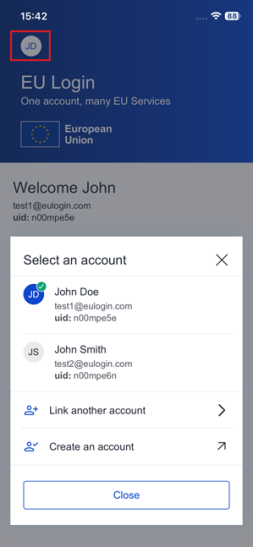
Switch Between Accounts
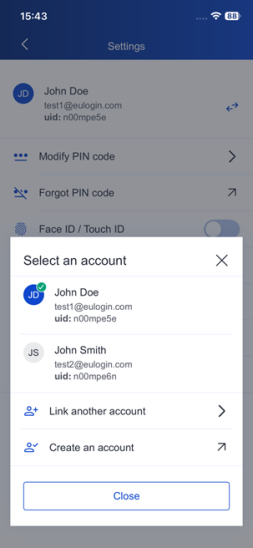
- Tap the monogram icon to quickly switch accounts (see above)
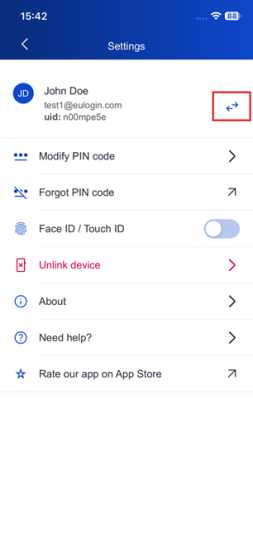
or - Navigate through Settings and use the arrows button to change the active account.
 |
 |
 |
Receive Notifications Across Accounts
- You will receive authentication notifications even if they are for an account that is not currently active on your screen when using the PIN authentication option (Sign in with the EU Login Mobile App PIN code)